> For the complete documentation index, see [llms.txt](https://primer.interlisp.org/llms.txt). Markdown versions of documentation pages are available by appending `.md` to page URLs; this page is available as [Markdown](https://primer.interlisp.org/the-file-browser.md).
# The File Browser
The File Browser is a Medley tool that makes it easy to manipulate files on your disk. It is distinct from the File Manager ("File Package"), which coordinates Lisp definitions in memory and their representation on disk. The File Browser is like the macOS Finder, Windows Explorer, or Gnome's Nautilus.
To run it, select File Browser from the background menu. Hold down the left mouse button and drag to shape the window:
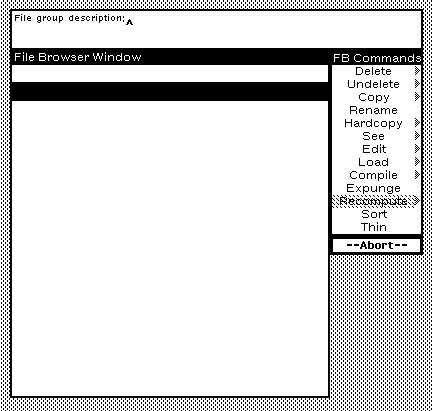
To view all the files in a directory, type \* and press Enter, in the File group description prompt:
You can also type a specific file name to work only with that one.
To select a file, use the left mouse button; to select multiple, use the middle mouse button. A file is selected when a solid right-pointing arrow appears to its left. To deselect an already chosen file, hold down the Ctrl/Command key while pressing the middle mouse button.
Once one or more files have been selected, you can perform the operations available to you through the permanent menu FB Commands attached on the right.
| Command | What Does it Do |
| --------- | ------------------------------------------------------------------------------------------------------------------------------ |
| Delete | Marks selected files for deletion (crossed out in the list). Files aren’t removed until you use Expunge. |
| Undelete | Restores any files previously marked for deletion. |
| Copy | Copies selected files. You’ll be prompted for a full destination filename (for one file) or a directory (for multiple). |
| Rename | Moves or renames selected files. You’ll be prompted, for a new filename (single) or a target directory (multiple). |
| Hardcopy | |
| See | Opens the selected file in a new read-only window for viewing. |
| Edit | Opens the selected file in the Medley editor. For Lisp files, only the `FILECOMS` list (functions, variables, etc.) is edited. |
| Load | Loads selected file(s) into the Medley environment. |
| Compile | Compiles selected file(s) from disk. If changes were made, use `(MAKEFILE 'filename)` before compiling. |
| Expunge | Permanently deletes all files currently marked for deletion. |
| Recompute | Refreshes the directory listing to reflect any recent changes (e.g., new file versions). |
---
# Agent Instructions
This documentation is published with GitBook. GitBook is the documentation platform designed so that both humans and AI agents can read, navigate, and reason over technical content effectively. Learn more at gitbook.com.
## Querying This Documentation
If you need additional information that is not directly available in this page, you can query the documentation dynamically by asking a question.
Perform an HTTP GET request on the current page URL with the `ask` query parameter, and the optional `goal` query parameter:
```
GET https://primer.interlisp.org/the-file-browser.md?ask=&goal=
```
`ask` is the immediate question: it should be specific, self-contained, and written in natural language.
`goal` is optional and describes the broader end goal you are ultimately trying to accomplish on behalf of the user. GitBook uses it to tailor the answer towards what is most useful for that goal.
The response will contain a direct answer to the question and relevant excerpts and sources from the documentation.
Use this mechanism when the answer is not explicitly present in the current page, you need clarification or additional context, or you want to retrieve related documentation sections.