> For the complete documentation index, see [llms.txt](https://primer.interlisp.org/llms.txt). Markdown versions of documentation pages are available by appending `.md` to page URLs; this page is available as [Markdown](https://primer.interlisp.org/drawing-and-displaystreams.md).
# Drawing and Displaystreams
In *Build Your First Interactive Program,* we learnt how to make our own windows. In Medley, we can create a special window for drawing, somewhat similar to a pixel art editor- a bitmap editor. A bitmap is a rectangular array of pixels.
The form `(BITMAPCREATE width height)` creates a bitmap in the background, but it cannot be seen till we assign a variable name to it and edit it. We can edit a bitmap using:
`(EDITBM bitmap-name)`
In an Exec, type:
`(SETQ my.bitmap (BITMAPCREATE 40 40))`
and then:
`(EDITBM my.bitmap)`
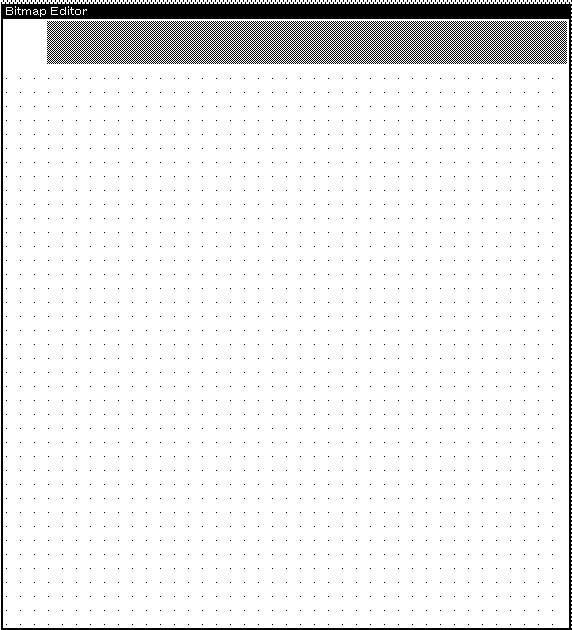
Your cursor will now display the outline of the window you created. Your Prompt Window displays: *Indicate the position for the Bitmap Edit Window*. Left-click on an empty space in your workspace to place your bitmap editor.
To draw, hold down on your left mouse button, and to erase, hold down your middle mouse button.
To save your bitmap, hold down the middle mouse button in the solid gray box in the upper-center area. A menu will appear. While holding down the middle mouse button, place your cursor on top of "OK" and let go. Your work will be saved, and the window will close. The next time you edit your bitmap, you'll see what you previously drew.
***
Bit Block Transfer or `BITBLT` is a method for displaying a bitmap inside another bitmap or a window.
`BITBLT` has the following parameters:
`(BITBLT sourcebitmap sourceleft sourcebottom destinationbitmap destinationleft destinationbottom width height sourcetype operation texture clippingregion)`
`sourcebitmap`: The bitmap to be moved into the destinationbitmap
`sourceleft`: A number, starting at 0 for the left edge of the sourcebitmap, that tells BITBLT where to start moving pixels from the sourcebitmap. For example, if the leftmost 10 pixels of sourcebitmap were not to be moved, sourceleft should be 10. The default value is 0.
`sourcebottom`: A number, starting at 0 for the bottom edge of the sourcebitmap, that tells BITBLT where to start moving pixels from the sourcebitmap. For example, if the bottom 10 rows of pixels of sourcebitmap were not to be moved, sourcebottom should be 10. The default value is 0.
`destinationbitmap`: The bitmap that will receive the sourcebitmap. This is often a window (actually the bitmap of a window, but Interlisp takes care of that for you).
`destinationleft`: A number, starting at 0 for the left edge of the destinationbitmap, that tells BITBLT where to start placing pixels from the sourcebitmap. For example, to place the sourcebitmap 10 pixels in from the left, destinationleft should be 10. The default value is 0.
`destinationbottom`: A number, starting at 0 for the bottom edge of the destinationbitmap, that tells BITBLT where to start placing pixels from the sourcebitmap. For example, to place the sourcebitmap 10 pixels up from the bottom, destinationbottom should be 10. The default value is 0.
`width`: How many pixels in each row of sourcebitmap should be moved. The same amount of space is used in destinationbitmap to receive the sourcebitmap. If this argument is NIL, it defaults to the number of pixels from sourceleft to the end of the row of sourcebitmap.
`height`: How many rows of pixels of sourcebitmap should be moved. The same amount of space is used in destinationbitmap to receive the sourcebitmap. If this argument is NIL, it defaults to the number of rows from sourcebottom to the top of the sourcebitmap.
`sourcetype`: Refers to one of three ways to convert the sourcebitmap for writing. For now, just use ’INPUT.
`operation`: Refers to how the sourtebitmap gets BITBLT’d on to the destinationbitmap. ’REPLACE will BLT the exact sourcebitmap. Other operations allow you to AND, OR or XOR the bits from the sourcebitmap onto the bits on the destinationbitmap.
`texture`:Just use NIL for now.
`clippingregion`: Just use NIL for now.
{% hint style="info" %}
Try displaying your new artwork in a new window. Refer to previous chapters if you need a refresher on windows.
{% endhint %}
***
Till now, we've learnt how to create windows with a predefined size, border, and title. But there's a simpler way to make a window:
In an Exec, type: `(SETQ my.window (CREATEW)`
Your cursor will change. You can now click, drag, and create a new window of any size. You can refer to this window just like any other using the name you set, which is my.window for this example.
Windows are displaystreams. A display stream is simply a place to display. They determine what is displayed and where. We've learnt to draw with a dedicated bitmap editor but did you know we can also draw on a disaplystream- a window with code?
There are four primary functions for drawing to a displaystream:
**DRAWLINE**: `(DRAWLINE x1 y1 x2 y2 width operation stream color dashing)`
Example: `(DRAWLINE 10 15 100 150 5 ’INVERT my.window)`
**DRAWTO**: `(DRAWTO x y width operation stream color dashing)`
Example: `(DRAWTO 120 135 5 ’INVERT my.window)`
**DRAWCIRCLE**: `(DRAWCIRCLE centerx centery radius brush dashing stream)`
Example: `(DRAWCIRCLE 150 100 30 ’(VERTICAL 5) NIL my.window)`
**FILLCIRCLE**: `(FILLCIRCLE centerx centery radius texture stream)`
Example: `(FILLCIRCLE 200 150 10 GRAYSHADE my.window)`
---
# Agent Instructions
This documentation is published with GitBook. GitBook is the documentation platform designed so that both humans and AI agents can read, navigate, and reason over technical content effectively. Learn more at gitbook.com.
## Querying This Documentation
If you need additional information that is not directly available in this page, you can query the documentation dynamically by asking a question.
Perform an HTTP GET request on the current page URL with the `ask` query parameter, and the optional `goal` query parameter:
```
GET https://primer.interlisp.org/drawing-and-displaystreams.md?ask=&goal=
```
`ask` is the immediate question: it should be specific, self-contained, and written in natural language.
`goal` is optional and describes the broader end goal you are ultimately trying to accomplish on behalf of the user. GitBook uses it to tailor the answer towards what is most useful for that goal.
The response will contain a direct answer to the question and relevant excerpts and sources from the documentation.
Use this mechanism when the answer is not explicitly present in the current page, you need clarification or additional context, or you want to retrieve related documentation sections.